
Schedule Discord messages any way you like
Send once, on a handful of dates, every other Tuesday or every 6 hours. You see the next sends before you save, and Embed Generator's bot posts the message on time in your timezone.
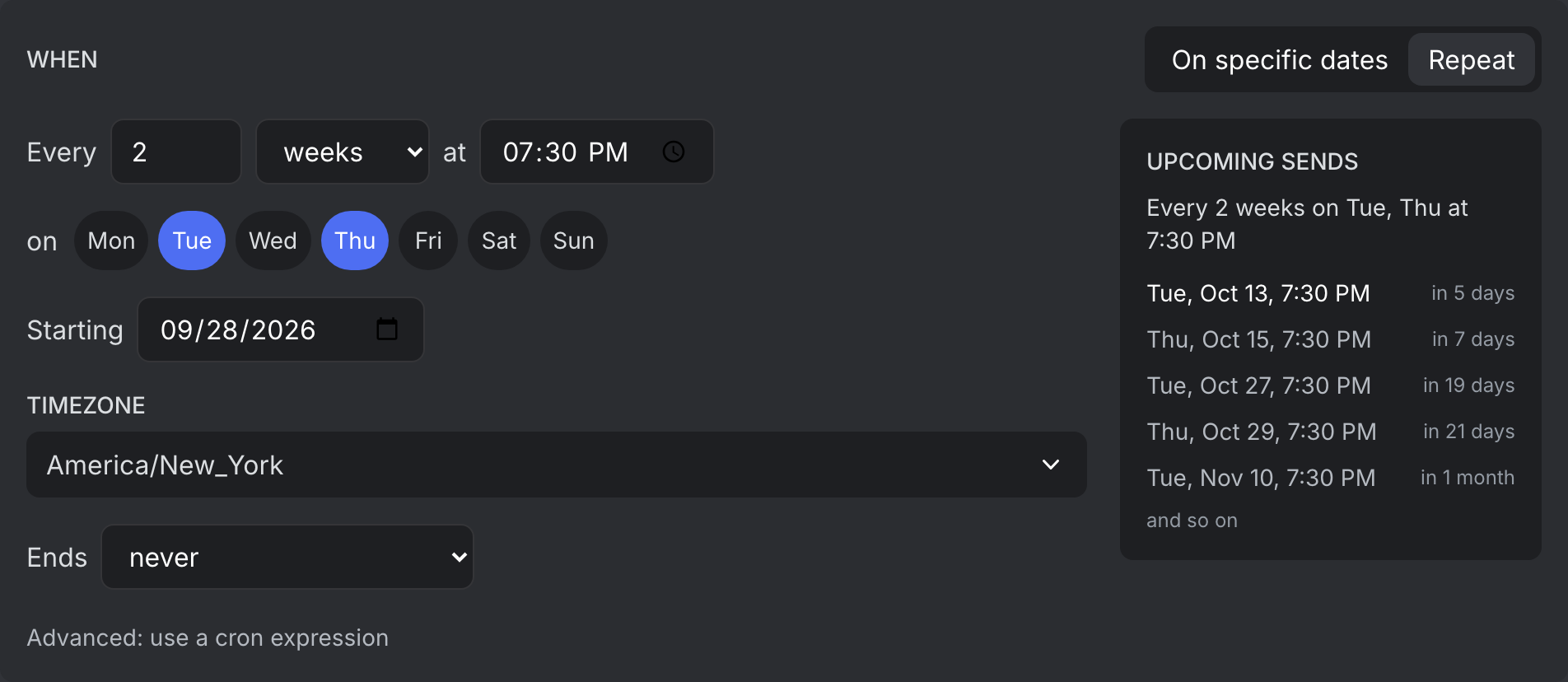
- Thu, Oct 8, 7:30 PMin 8 hours
- Tue, Oct 20, 7:30 PMin 12 days
- Thu, Oct 22, 7:30 PMin 14 days
- Tue, Nov 3, 7:30 PMin 26 days
- Thu, Nov 5, 7:30 PMin 28 days
Every way to schedule.
One date and time. Free on every server.
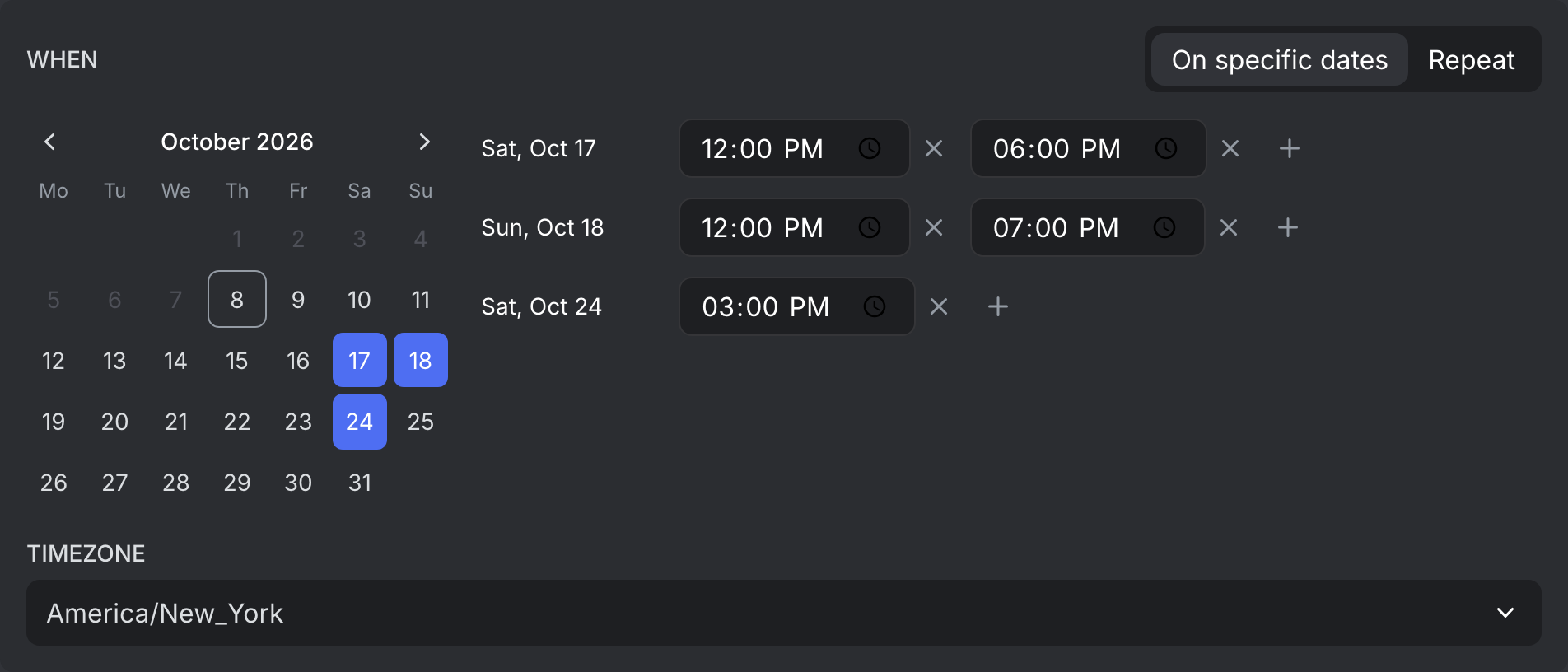
Click the days on a calendar and give each one or more times. Up to 100 sends in one scheduled message.
The gap stays the same number of hours, even on the night the clocks change.
Counted from your start date, so every 14 days stays every 14 days across the end of a month.
Pick one or more weekdays. Every 2 weeks means every other week, starting with the week you start in.
For monthly recaps and quarterly reports, or once a year with every 12 months.
For anything the options above don't cover, like weekdays at 9:00. The preview spells out what it does in plain words.
Stop on a date or after a number of sends, like a countdown or a 30 day challenge. The preview shows when the last one goes out.
Repeats that read like a sentence.
Pick a number, a unit, the days and a time, and it reads back like you'd say it: every 2 weeks on Tuesday and Thursday at 7:30 PM. The next sends update as you edit, so you can check the schedule before you save it.
Or just pick the dates.
For events that don't follow a pattern, click the days in the calendar and give each one as many times as you need. A tournament weekend with a reminder at noon and one before the finals is a single scheduled message.
See the whole month at once.
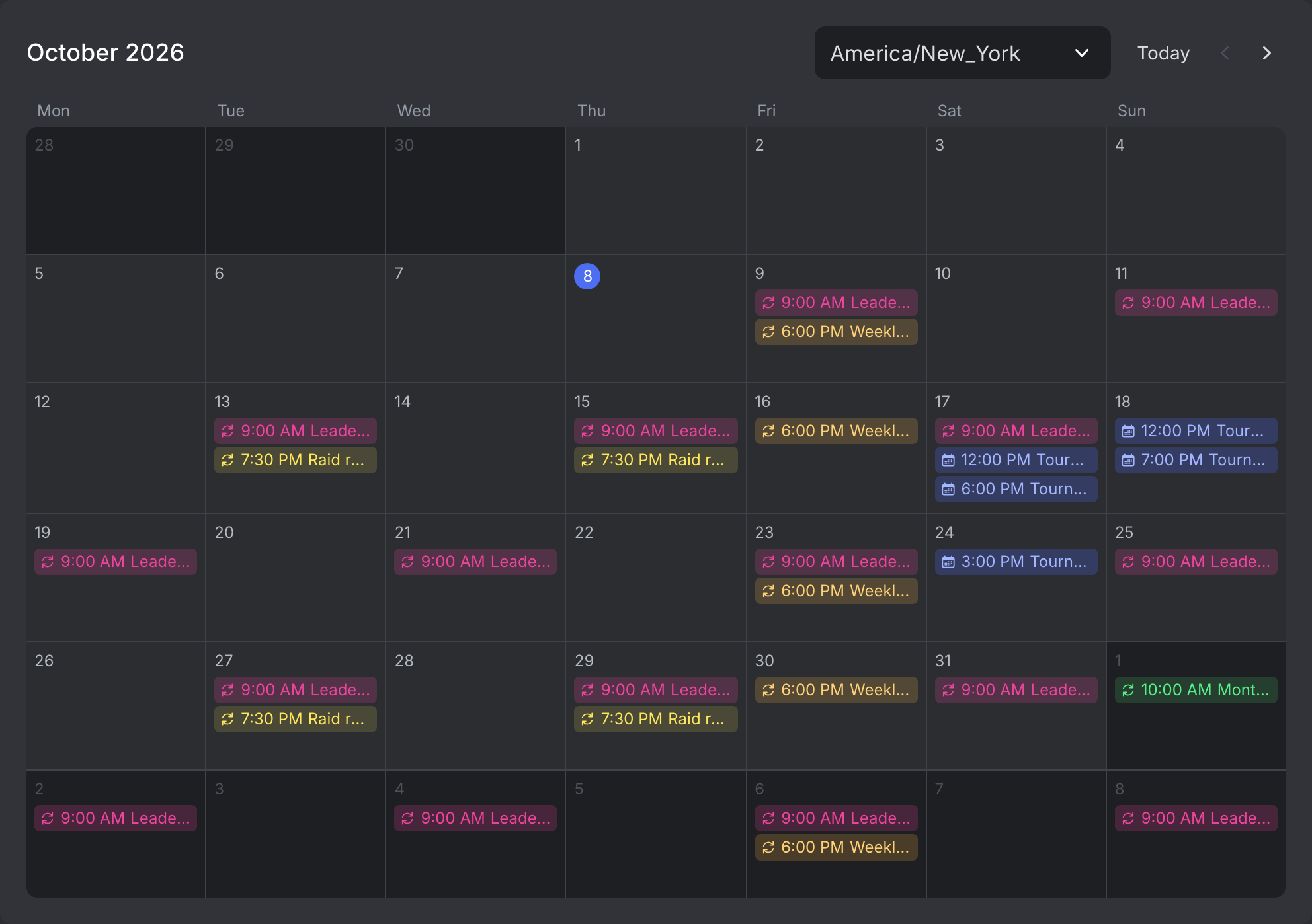
The calendar shows every upcoming send of the server, with a color for each message. Click a send to open its schedule, or the plus on a day to schedule something new on it.
See what's running.
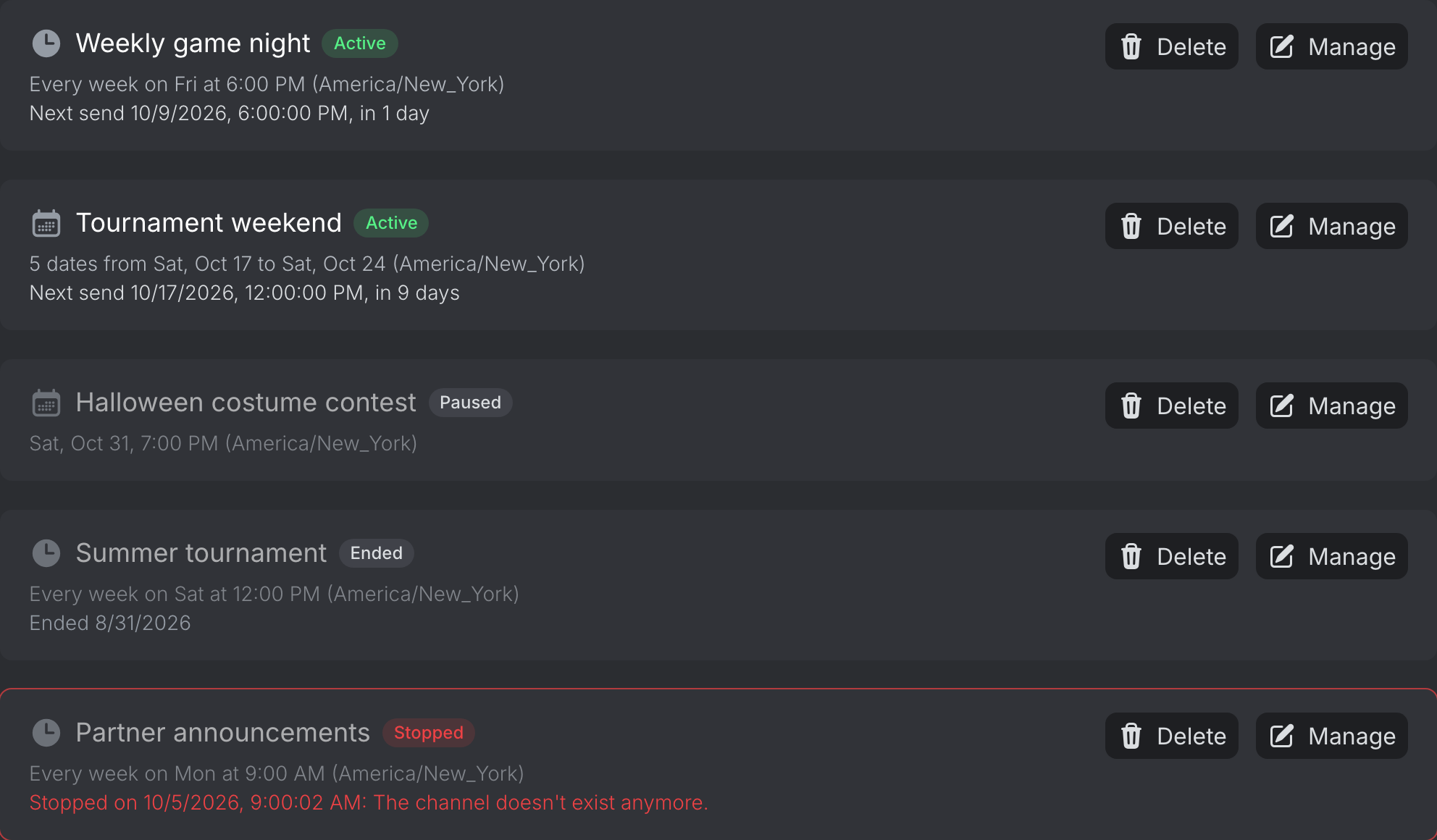
The list shows which messages are active, paused, ended or stopped, and when each one sends next. When a send fails, it tells you why, like a deleted channel.
Schedule a message in three steps.
- 1
Add the bot to your server
Log in with Discord and add Embed Generator to your server. The bot sends the message, so it needs access to the channel.
- 2
Build and save the message
Write it in the editor with embeds, images and buttons, then save it. A schedule always sends a saved message, so you can change the message later without touching the schedule.
- 3
Say when
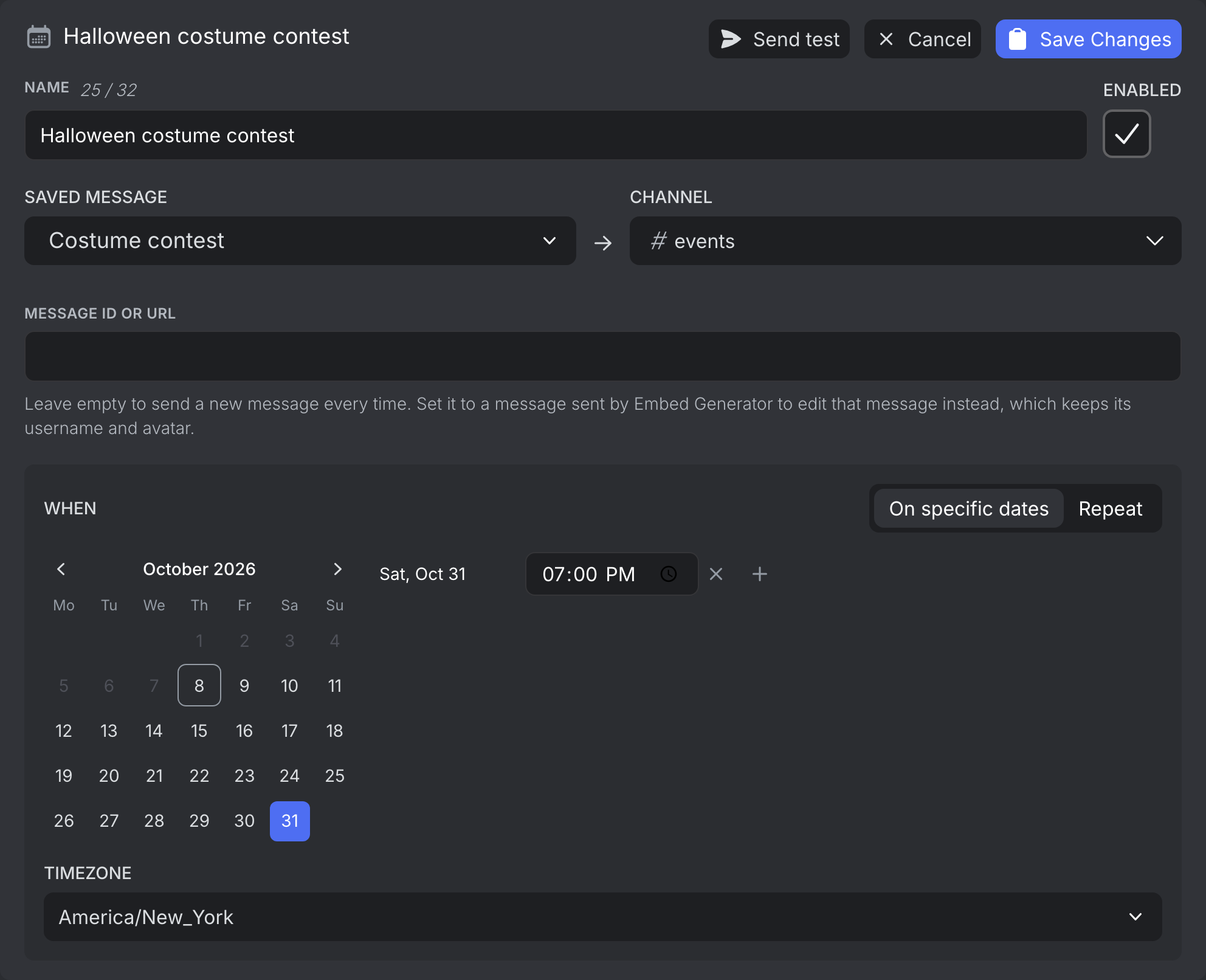
Open Scheduled Messages, pick the saved message and the channel, then click the dates or set up the repeat. The next sends show up as you go.
More than a reminder bot.
Your timezone, all year
Times are in the timezone you pick and follow daylight saving time, so a message at 9:00 goes out at 9:00 all year.
Update one message
Point a schedule at a message the bot already sent and each run edits it instead of posting a new one. Good for a leaderboard that refreshes every other day.
Checked before it's saved
Saving checks the message for mistakes in variables and components, so you find out now and not when a send fails. Send test posts it to the channel right away so you can see how it looks.
Live variables
The server name, member count and channel are filled in when the message goes out, not when you wrote it. Learn more →
Buttons that work
Buttons and select menus in the saved message keep working in scheduled posts, including ones that hand out roles. Learn more →
Clear errors
If a send fails, you see why and when. If Discord rejects the message, for example because the channel was deleted, the schedule stops instead of retrying forever.
Questions.
- Can you schedule messages on Discord?
- Yes, with a bot. Embed Generator's bot posts a saved message to a channel at the time you set: once, on a list of dates, or on a repeating schedule.
- Is it free?
- Scheduling a message to send once is free. Repeating schedules, lists of dates and more scheduled messages per server come with Premium. Premium →
- How often can a message repeat?
- As often as every minute, or every few hours, days, weeks or months. You can set when it starts, and end it on a date or after a number of sends. For anything else there's cron.
- Can I send every two weeks?
- Yes. Pick every 2 weeks and the days of the week. It's counted from your start date, so it stays every other week, also when a new month starts.
- Can I send the same message on several dates?
- Yes. Switch to On specific dates, click the days in the calendar and give each day one or more times. One scheduled message holds up to 100 dates.
- How do I see everything that's scheduled?
- The Calendar tab shows every upcoming send of the server in one month view, in the timezone you pick. Click a send to open its schedule.
- Can I schedule a post in a forum channel?
- Yes. Pick the forum or media channel and set a thread name. Each run creates a new post with that name.
- Can a schedule edit a message instead of posting a new one?
- Yes. Paste the link of a message Embed Generator sent into Message ID or URL. Each run edits it in place and keeps its name and avatar.
Got something to announce?
Build it once and let the bot post it on time, as often as you need.
Schedule a message